
Sign in to PRIZM
Open your PRIZM instance URL in a browser. On the login screen, enter your Email, then click Login.If you don’t have an account yet, please contact your Administrator below for an account to be created. Once authenticated, PRIZM redirects you to the Asset discovery page—or to the home page you have chosen to reach upon logging in.
Navigate the Asset page
After signing in, you land on the Asset—your starting point for exploring the platform. The header gives you everything you need to move around:
- Assets, Metrics, Alerts, and Issues appear as primary navigation items.
- Click More to access additional sections such as Analytics, Product, Glossary and many more.
- Use the Search bar on the right side of the header to find any asset by name. Press ⌘K (Mac) or Ctrl+K (Windows/Linux) to focus the search field from anywhere in the platform.
Search for an asset
Click Assets in the header to open the asset catalog. Use the search bar to find assets by name across all connected databases and platforms.
DQLabs Prizm catalogs assets across the full data stack — from raw ingestion sources and warehouse connections, through transformation layers (models, views, pipelines), all the way to consumption layer assets like dashboards, workbooks, and reports — with data quality tests and jobs tracked throughout.
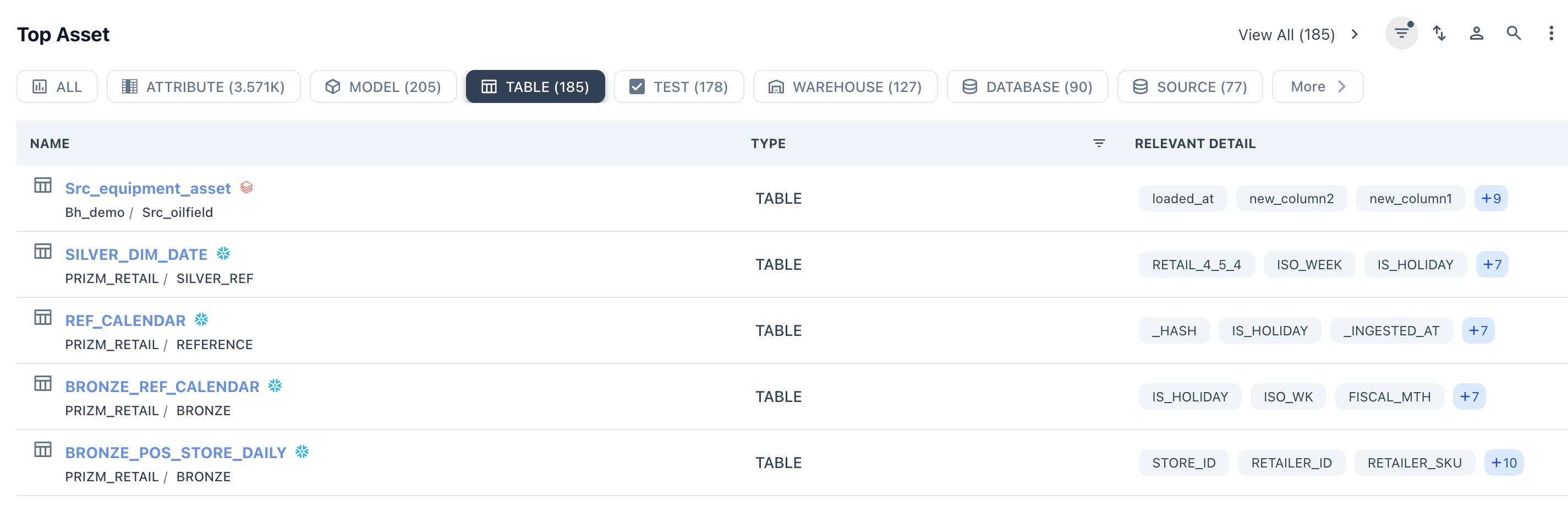
| Tab | What It Shows |
|---|---|
| ALL | Every asset across all types |
| ATTRIBUTE | Individual fields/columns belonging to a data asset |
| MODEL | Logical or semantic data models defined in Prizm |
| TEST | Data quality and validation test definitions |
| WAREHOUSE | Data warehouse connections/instances (e.g. Snowflake, Redshift) |
| DATABASE | Database objects within a warehouse |
| ACCOUNT | Platform or service account level entities |
| EXPOSURE | Downstream consumers of data (dashboards, apps, reports) |
| DASHBOARD | BI/visualization dashboards connected to data assets |
| WORKBOOK | Workbooks containing multiple dashboards or sheets |
| SITE | Top-level platform site (e.g. a Tableau site) |
| SEED | Static reference/lookup data files (e.g. CSV seeds) |
| QUERY | Saved queries for reuse and lineage tracking |
| PIPELINE | ETL and data pipelines (lineage & monitoring) |
| REPORTS | Report assets published to end users |
| SEMANTICS | Semantic models and metric/KPI definitions |
snowflake-db/production_schema or postgres_db/analytics_schema) and associated columns.View asset details
Click any asset in the list to open its detail page. The detail view shows the asset’s description, source, owners, last-updated date, and quality tags. Use the tabs to explore different aspects of the asset:
- **Overview **— Summary of the asset at a glance includes volume trends, schema column count, freshness status, and overall data quality score. Also surfaces any recent alerts, issues, and quick metadata like owner and classification.
- **Attribute **— Column-level view of the asset’s structure — lists every attribute/field with its data type, nullability, sample values, and individual quality profiling stats like uniqueness, completeness, and value distribution.
- **Metric **— Data quality metrics collected for this asset over time — tracks dimensions such as completeness, accuracy, consistency, and timeliness. Displays historical trend charts so you can spot degradation or anomalies across runs.
- **Usage **— Tracks how this asset is being consumed — shows query frequency, active users, and access patterns. Helps identify whether the asset is heavily used, stale, or orphaned. The 28 Query count visible in the header feeds into this tab.
- **Lineage **— Visual map of upstream and downstream data dependencies — shows where data comes from (source tables, pipelines) and where it flows to (models, dashboards, reports). Useful for impact analysis when a schema or data change is planned.
- **Audit **— Change history and access log for the asset — records who viewed, edited, or certified the asset and when. Useful for governance, compliance, and tracking metadata changes over time.
- **Documentation **— Free-form and structured reference documentation linked to the asset — includes descriptions, business definitions, ownership notes, tags, and any linked wiki or external docs. Supports data literacy and self-service discovery.
- **Conversation **— Collaborative discussion thread attached to the asset — team members can ask questions, leave comments, flag concerns, or discuss data issues directly in context without leaving the platform. The 0 Conversation count in the header reflects no active threads yet.
Check alerts and issues
Click Alerts in the header to see all active notifications. Alerts are categorized by severity—Critical, High, Warning, and Info—and include details such as the affected asset, drift status, and percent change.Click Issues to see open data quality problems across your environment. Each issue shows the affected asset, database, priority level, and current status (New, In Progress, or Resolved). Use this view to triage and track problems to completion.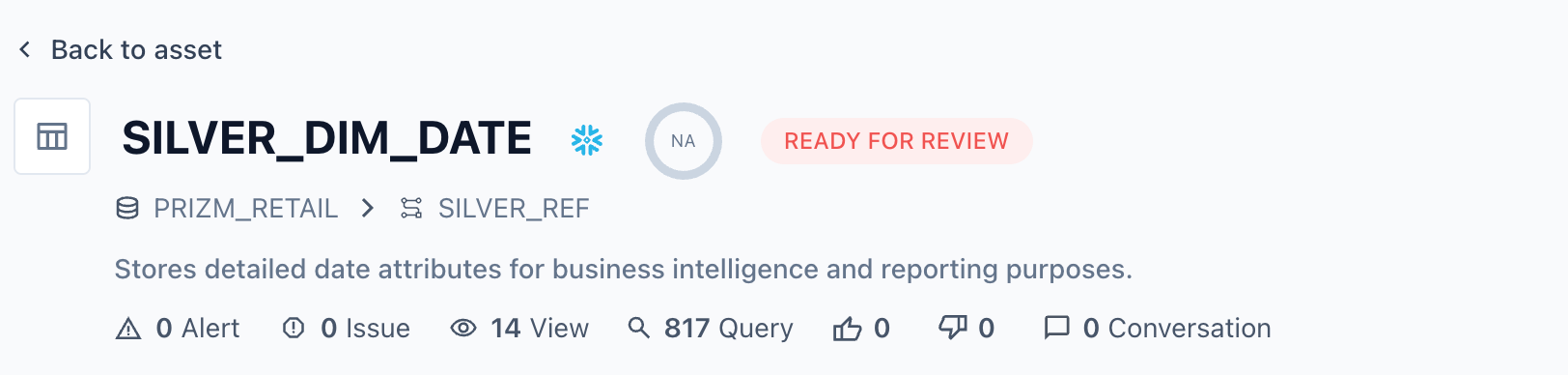
What’s next
Assets
Learn how PRIZM discovers and catalogs tables, views, queries, pipelines, and semantic models.
Alerts
Understand how alerts are generated, classified by severity, and linked to assets.
Issues
Learn how to manage data quality issues from discovery through resolution.
Converse
Use natural language to ask questions about your data directly inside PRIZM.