
Asset types
PRIZM organizes assets by its native type. Use the tab bar on the Assets page to filter the list to the type you need.
Asset Page — View Modes & Search
The Asset page offers three view layouts (toggled via the icons top-right of the page) plus a global search bar for data discovery — each suited to a different way of exploring your catalog.1. Search View (Default)
The default landing view, organized around “Top Asset” with a type filter bar (All, Attribute, Table, View, Model, Test, Warehouse, Source, etc.) showing live counts per type.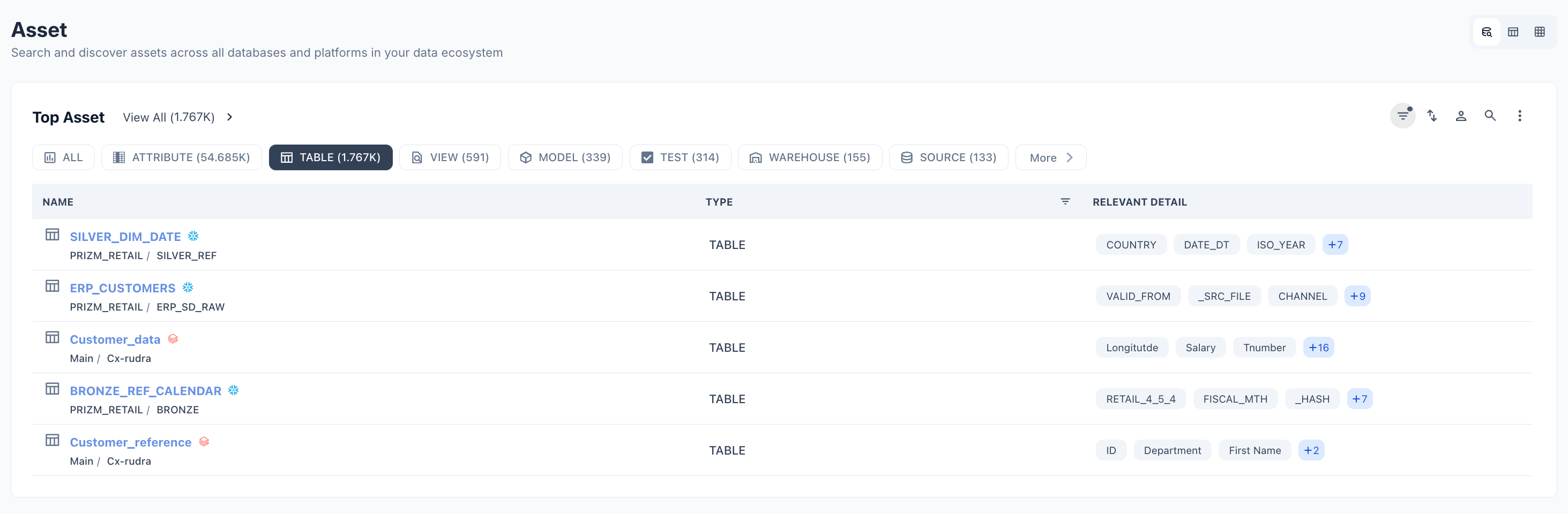
- Displays assets in a compact list with Name, Type, and Relevant Detail (key attributes/columns associated with the asset).
- Includes a Documentation panel below, surfacing recently created or relevant docs (READMEs, category docs, etc.) tied to assets.
- Best for: quick scanning across asset types and jumping straight into documentation context.
2. Table View
A dashboard-style summary at the top (Attribute, Table, View, Model, Test, Warehouse counts with trend % changes), followed by a structured data grid.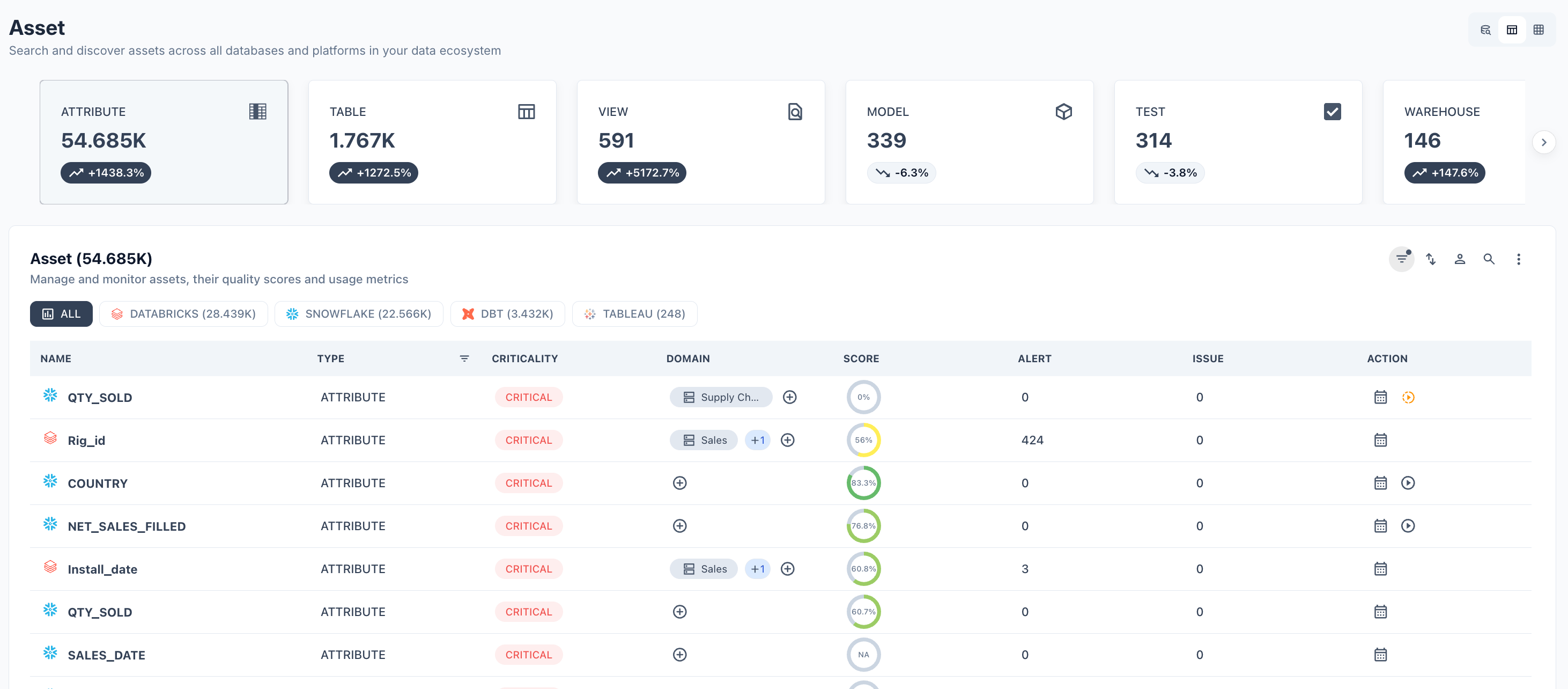
- Filterable by source platform (Snowflake, Databricks, dbt, etc.).
- Grid columns include Name, Type, Criticality, Domain, Score, Alert, Issue, Action — giving a governance-and-quality-first view of every asset.
- Supports saved views (”+ Filter”, “Save as view”) for repeatable, filtered asset lists.
- Best for: operational monitoring — triaging assets by criticality, score, alerts, and issues in one sortable table.
3. Grid View
Displays assets as individual cards, each showing name, source icon, path/breadcrumb, attribute count, a short AI-generated description, tags, score (with a circular gauge), and Alert/Issue counts.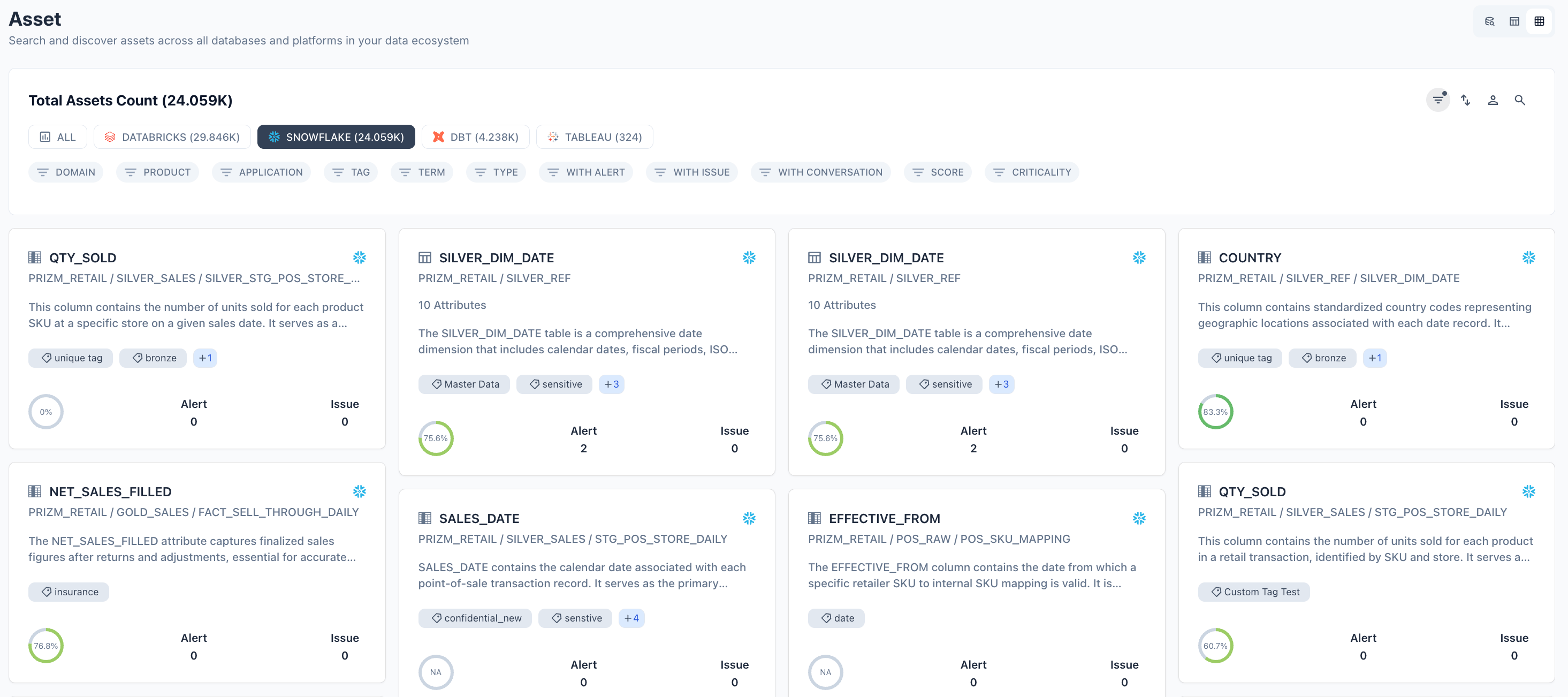
- Filterable by platform (Databricks, Snowflake, dbt, Tableau) and a rich set of facets: Domain, Product, Application, Tag, Term, Type, With Alert, With Issue, With Conversation, Score, Criticality.
- Best for: visual browsing — getting context and quality signals on multiple assets at a glance, especially useful when exploring unfamiliar parts of the catalog.
Global Search (⌘K)
The search bar at the top of every Asset page (shortcut ⌘K) is the fastest path to any asset, regardless of which view you’re in.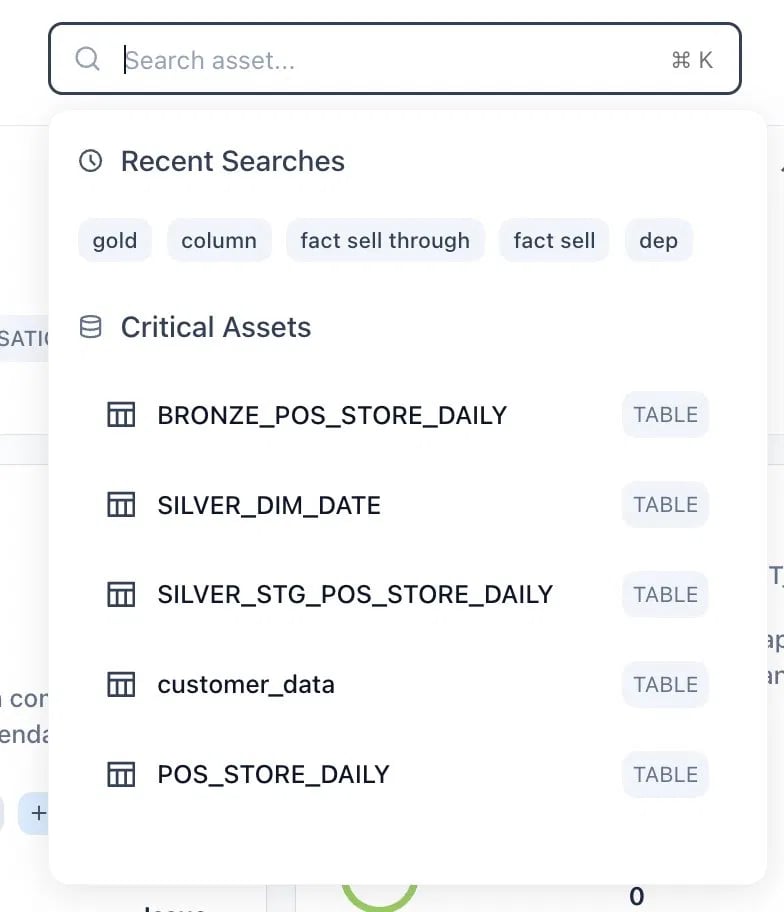
- Recent Searches — quick-access chips of your last queries (e.g., “gold,” “fact sell through”) to resume previous exploration.
- Critical Assets — a curated shortcut list surfacing high-criticality tables (e.g.,
BRONZE_POS_STORE_DAILY,SILVER_DIM_DATE) so the most business-sensitive assets are always one click away. - Searches span all connected databases and platforms simultaneously — by asset name, source, or column — without needing to switch tabs or filters first.
Choosing the Right View
| View | Best For |
|---|---|
| Search/List View | Fast scanning by type + jumping into related documentation |
| Table View | Governance triage — sorting by criticality, score, alerts, issues |
| Grid View | Visual, context-rich browsing with descriptions and tags |
| Global Search (⌘K) | Jumping directly to a known or critical asset from anywhere |
Asset Details
Click any asset in the list to open its detail view. Whether you’re tracing a single column or mapping an entire pipeline, Prizm treats every object in your data stack — tables, models, dashboards, pipelines, and beyond — as a unified asset, searchable and inspectable from one place. The asset type taxonomy gives consistent meaning across platforms, while the detail tabs (Overview, Entities, Metric, Usage, Lineage, Audit, Documentation, Conversation) give you every lens you need: health, structure, quality, usage, dependencies, history, and context. Together, this makes the Assets page the single source of truth for understanding what data you have, how trustworthy it is, and how it all connects. The detail view provides the following tabs whenever it is applicable along with any other custom tab the user creates.Overview
A summary of key metrics, recent alerts, and asset information at a glance. Start here to assess the current health of an asset.
Entities (child objects)
A summary of an asset’s child objects (e.g. Attribute under Table, Schema under Database) with relevant information for assessing structure.
Metric
Time-series charts and current values for all data observability and data quality metrics configured on the asset, such as completeness, uniqueness, volume and freshness.
Usage
Query activity, performance, and cost metrics for the asset, with a detailed query log showing the upstream sources and downstream consumers so you can trace the blast radius of an issue.
Lineage
An interactive lineage graph showing the upstream sources and downstream consumers of the asset, so you can trace the blast radius of a data quality issue.
Audit
Chronological log of who did what and when on the asset (views, edits, and other actions), useful for tracking activity and governance.
Documentation
Free-form documentation attached to the asset — descriptions, usage notes, and links — to help your team understand the data.
Conversation
A discussion space for the asset where users can start topics, ask questions, and engage with likes/dislikes and bookmarks for team collaboration.