
Sign in to PRIZM
Go to your PRIZM instance URL
Open your web browser and navigate to the URL your team uses for PRIZM. This is typically provided by your administrator. The login screen displays the PRIZM logo, a welcome message, and fields for your credentials.
Enter your email
Type your registered email address into the Email field, then click the “Send Verification Code” icon. If SSO is enabled, it would automatically authenticate and log in.
Navigate to Access
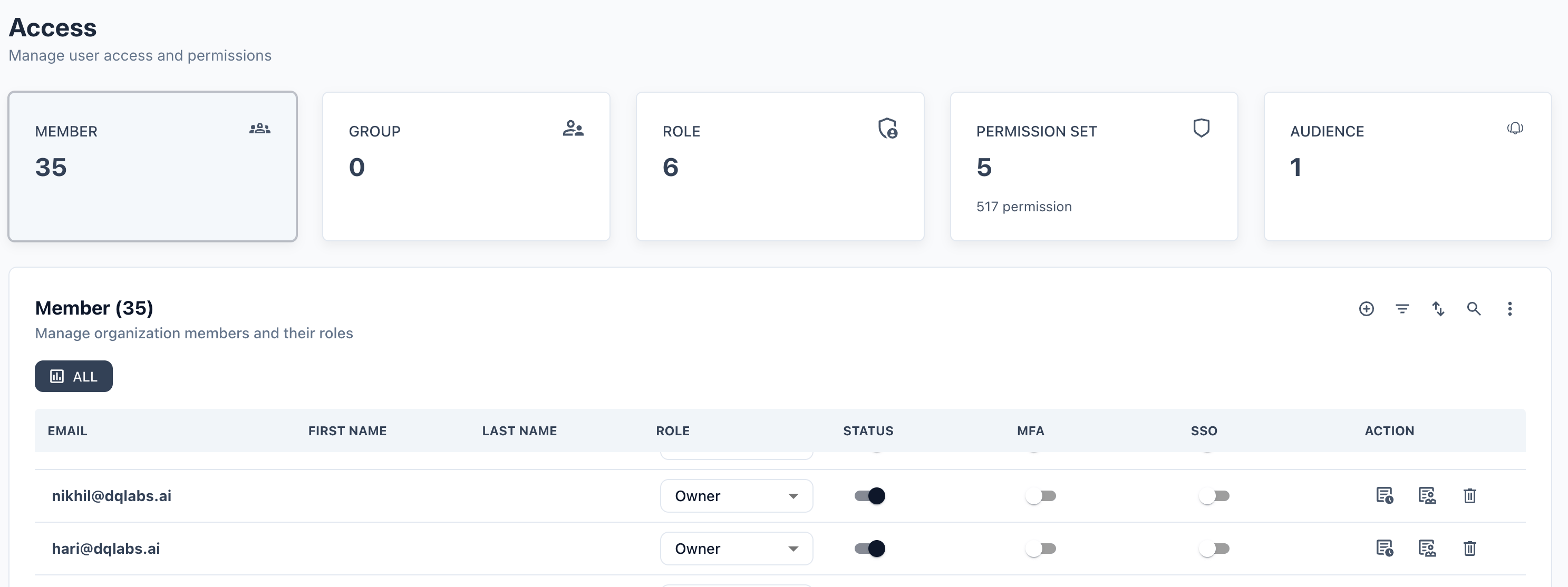
Click on Access in the top navigation bar. You will land on the Access page showing current Members, Groups, and Audience counts.
Prerequisites
- You must have Admin or Owner role to access the Access module.
- The invitee must have a valid email address.
Click + to add new member
In the Email field, type the invitee’s work email address.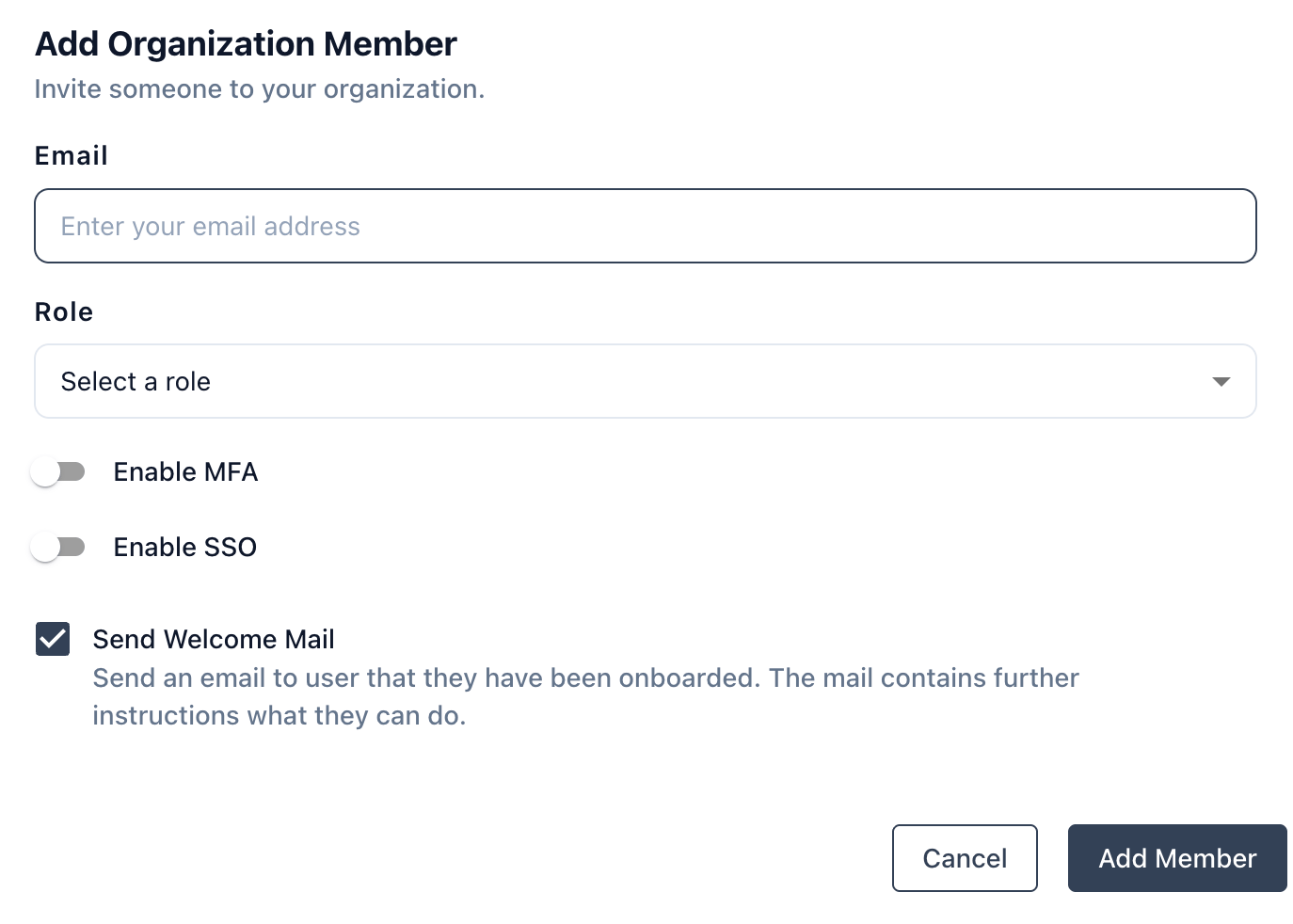
| Role | Typical Use |
|---|---|
| Owner | Full admin access, manages org settings |
| Steward | Manages data assets, observability / quality metrics, and documentation |
| User | End User access, with no edit permissions |
| (other roles) | As defined by your organization |
Configure Authentication option
| Option | Description | Default |
|---|---|---|
| Enable MFA | Requires the user to set up multi-factor authentication on first login | Off |
| Enable SSO | Allows the user to log in via your organization’s Single Sign-On provider | Off |
PRIZM remembers the page you were trying to access before login. After a successful sign-in, you are automatically redirected to that page instead of the default dashboard.
Post-Onboarding
Once added, you can manage the member from the Member list:- Change role via the role dropdown
- Toggle MFA/SSO on or off
- Edit member details using the edit icon
- Remove the member using the delete (trash) icon under Action column.
- Use Audit / Activity to monitor user activities against the interested user.
Account creation may require approval from your organization’s administrator, depending on how your PRIZM instance is configured. Contact your admin if you don’t receive access after registering.